Tutorial 2: Preparing for upload to Second Life
This tutorial describes my current steps for final preparation of a bvh file before uploading to Second Life. I do not present this as a definitive guide - please do let me know if you have any ideas or corrections in the bvhacker discussion group
Tutorial 2: Preparing for upload to Second Life
In this article I describe the way I process animations before uploading them to Second Life. I started off just using bvhacker to add the t-stance reference frame after exporting from my main animation editor because it's so much easier and quicker. Since then I've added a number of 'last minute' features that save me a lot of time!
An overview of bvhacker's interface is available hereThe menu commands are described here.
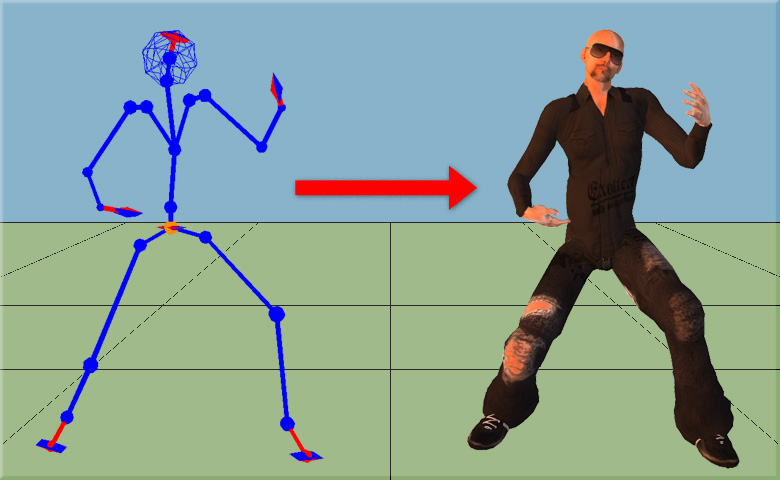
Six things to check before uploading an animation to Second Life:
1. Offset removal
In a sentence: Make sure the hips height is what you expect
Some animation editing software produces files with two offsets for the hip joint.
SL animations should only have one stored in the motion data and not
the hip joint's offset value.
Don't worry if this doesn't mean anything to you - all you need to do is:
- Press the 'NoOffset' button in the 'shortcuts' panel (keyboard shortcut 'N')
In fact, pressing the 'NoOffset' button can't do any harm, so it's nearly always worth pressing just to make sure.
2. Final positioning
In a sentence: Keep feet on the ground and make animation transitions smoother
- Select 'Translation mode' in the 'Sliders adjustment' (keyboard shortcut 'T')
- Click the 'front' button in the 'View' section
- Position your character using the X slider in front view and the Z slider in the left or right view (keyboard shortcut 'C')
- To position the feet on the ground, select the front view and then hit the 'floor' button and adjust your figure's height using the Y slider.
Standing, dancing, gesturing:
- Adjust the X and Z sliders until the character's feet are exactly centred (keyboard shortcut 'C')
- You can choose to center the hips or the feet. I find using the feet generally gives smother animation transitions
- From the floor view, adjust the Y slider until the bottom of your character's feet are in line with the ground
- Center your character's hips using the X slider and adjust the Y slider until your character's feet are in line with the ground
- The placement of the Z centre depends on what you need - just behind the knees works great for sitting on larger objects, halfway between the hips and knees is better for stools
- Center hips in X and Z planes. Set Y translation to around 8 to 10, depending on the thickness of the avi's bum
- Center hips in X only. Move forward in Z until feet are at zero. Set feet at hip height
3a. Free up joints
In a sentence: Adds random movement using SL generic animations
It is often desirable to free up various joints so SL can play it's generic animation on that joint. The usual candidate for 'freeing up' is the neck, as freeing this up allows the avatar's head to follow mouse movement. Occasionally, freeing up shoulders or arms can be effective - experimentation is the way forward here!
To free up a joint you need to set all rotation values (x,y and z) for the selected joint to zero. This makes sure that Second Life reads the joint as 'open to lower priority animations'.
To free up a joint, simply select it in the scene browser and click the clamp 'XYZ' button (bottom right of interface).
3b. Make sure joints are not freed up
In a sentence: Ensures SL does not ignore joint rotations
As described above, SL ignores joint with zero rotation in the first frame. Using the !Zero function will make sure that each joint's rotations in the first frame are large enough not to be ignored. Click the '!Zero' shortcut button, or use Main menu -> Prepare -> !Zero check or simply press Keyboard 'Z' to apply.
Important: This fix must be applied before the 'Set-T' function. This function will also undo any joints set to be free (as described in step 3a).
4. Framerate
In a sentence: speed up or slow down your animation
bvhacker is designed to play all frames, whether or not the computer can play them fast enough. It does this so that glitches that may have not been seen in other animation editing tools can more easily be detected . This means that many animations may appear to run slower in bvhacker if you are using a low-spec computer, so bvhacker is not the place to adjust the apparent speed of your animation.
However, with the above in mind, I do often speed up or slow down animations using bvhacker. This can be done by increasing or decreasing the framerate using the 'Frame time' control's buttons at the bottom left of the bvhacker interface.
5. Set T-Pose
In a sentence: Essential! Set the reference stance (T-Pose) for Second Life upload
Do a final scrub through the animation using the slider at the bottom of bvhacker's interface. If you are happy with what you see, hit the 'Set T' button to set the reference frame for Second Life.
6. Workaround the SL loop bug
In a sentence: Second Life has a very old bug that corrupts a smooth loop: bvhacker has a fix for this.
When uploading animations, Second Life puts one or more extra frames at the ends of your animation. This is a known and well documented bug - see 'First frame of uploaded animations is duplicated' on the SL JIRA.
You can fix this by clicking 'Fix Loop' in the shortcuts pane (or go to Main menu -> Prepare -> SL VWR 3783 loop fix, or use keyboard shortcut 'L') and following the on-screen instructions. When you upload the animation, you will need to specify an 'In(%)' value on the SL bvh upload dialog to complete the fix. The In(%) value is copied to your clipboard when you apply the fix, so you can simply paste it into the In(%) field on the SL bvh upload dialog at upload time.
Note: Your animation will now loop smoothly in Second Life. However, it will NOT loop properly in animation editors (including bvhacker) once the fix has been applied. For this reason, it's a good idea to save a copy of your work BEFORE applying the SL loop bug fix.
At the time of writing (April 2010) Linden Labs are looking at fixing this bug. You may want to check on the status of the bug here before you apply this fix.
Now save and upload to SL
You now have a 'polished' animation ready for upload to Second Life.
Now you know what you are doing, I can give you one final piece of info: You can automatically apply the following operations, in this order:
- Remove offset (step 1)
- Center figure (step 2)
- Set T-stance (step 5)
- Fix SL loop bug (step 6)

A note on intellectual property rights
If you do sell animations made with bvhacker you have an obligation to obtain permission from the original bvh motion file creator to re-sell their work. However, this does not apply to files from bvhfiles.com - if you want to re-sell animations from there you are permitted to do so as long as you add the words 'bvhfiles.com' or 'Animazoo' to the name of the animation when you put it up for sale.
